

“Cara Set Up Network dan HTTP Load Balancers di GCP”
Pengantar
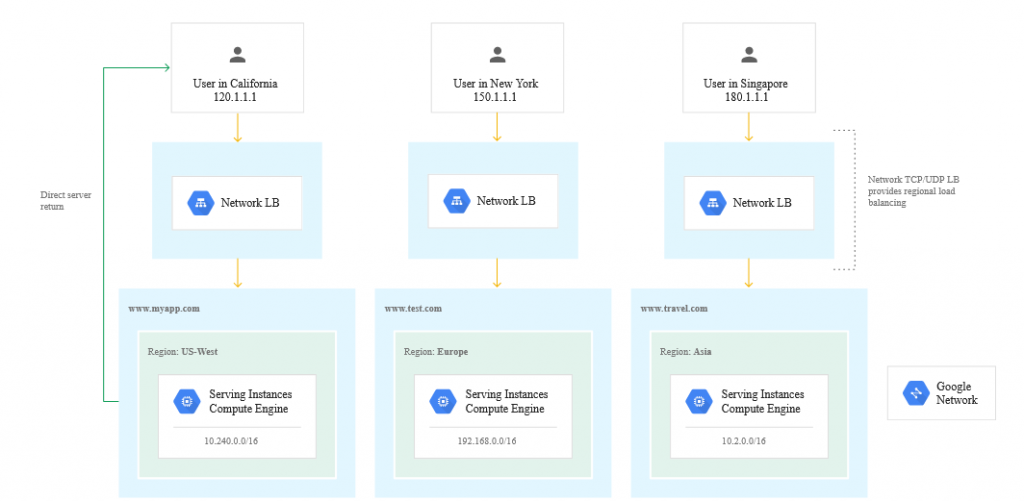
Load Balancing Jaringan TCP/UDP eksternal Google Cloud (setelah ini disebut sebagai Network Load Balancing) adalah penyeimbang beban pass-through regional. Penyeimbang beban jaringan mendistribusikan lalu lintas eksternal di antara instans mesin virtual (VM) di wilayah yang sama.
Aktifkan Cloud Shell
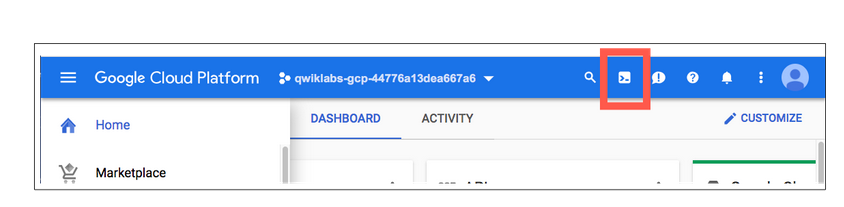
- Buka dashboaard GCP
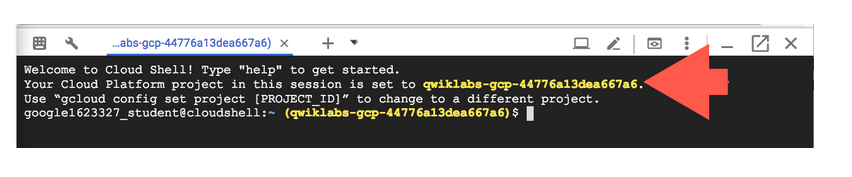
- Pilih Cloud shell
Setting default region dan zone untuk semua resources
- Setting default zone
gcloud config set compute/zone us-central1-a
- setting default Region
gcloud config set compute/region us-central1
Membuat multiple web server instances
- Buat webserver 1
gcloud compute instances create www1 \
  --image-family debian-9 \
  --image-project debian-cloud \
  --zone us-central1-a \
  --tags network-lb-tag \
  --metadata startup-script="#! /bin/bash
    sudo apt-get update
    sudo apt-get install apache2 -y
    sudo service apache2 restart
echo '<!doctype html><html><body><h1>www1</h1></body></html>' | tee /var/www/html/index.html"- Buat Webserver 2
gcloud compute instances create www2 \
  --image-family debian-9 \
  --image-project debian-cloud \
  --zone us-central1-a \
  --tags network-lb-tag \
  --metadata startup-script="#! /bin/bash
    sudo apt-get update
    sudo apt-get install apache2 -y
    sudo service apache2 restart
echo '<!doctype html><html><body><h1>www2</h1></body></html>' | tee /var/www/html/index.html"- Buat Webserver 3
gcloud compute instances create www3 \
  --image-family debian-9 \
  --image-project debian-cloud \
  --zone us-central1-a \
  --tags network-lb-tag \
  --metadata startup-script="#! /bin/bash
    sudo apt-get update
    sudo apt-get install apache2 -y
    sudo service apache2 restart
echo '<!doctype html><html><body><h1>www3</h1></body></html>' | tee /var/www/html/index.html"- Buat firewall rule untuk allow external traffic menuju VM instances
gcloud compute firewall-rules create www-firewall-network-lb \
--target-tags network-lb-tag --allow tcp:80- Cek List Compute
gcloud compute instances list
- Test Curl
curl http://[IP_ADDRESS]
Konfigurasi load balancing service
- Buat static external IP untuk loadbalancer
gcloud compute addresses create network-lb-ip-1 \
 --region us-central1
- Buat HTTP Health Check
gcloud compute http-health-checks create basic-check
- Buat Target pool untuk di hubungkan dengan health check
gcloud compute target-pools create www-pool \
--region us-central1 --http-health-check basic-check- Tambahkan instance pada pool
gcloud compute target-pools add-instances www-pool \
--instances www1,www2,www3- Buat forwading Rule
gcloud compute forwarding-rules create www-rule \
    --region us-central1 \
    --ports 80 \
    --address network-lb-ip-1 \
    --target-pool www-pool
Mengirim traffict pada Instance
- Cek list external IP dan forwading
gcloud compute forwarding-rules describe www-rule --region us-central1
- Ganti IP_ADDRESS dengan yang ada di list IP external
while true; do curl -m1 IP_ADDRESS; done
Membuat HTTP load balancer
- Buat Load Balancer Template
gcloud compute instance-templates create lb-backend-template \
   --region=us-central1 \
   --network=default \
   --subnet=default \
   --tags=allow-health-check \
   --image-family=debian-9 \
   --image-project=debian-cloud \
   --metadata=startup-script='#! /bin/bash
     apt-get update
     apt-get install apache2 -y
     a2ensite default-ssl
     a2enmod ssl
     vm_hostname="$(curl -H "Metadata-Flavor:Google" \
     http://169.254.169.254/computeMetadata/v1/instance/name)"
     echo "Page served from: $vm_hostname" | \
     tee /var/www/html/index.html
systemctl restart apache2'- Buat Instance Group
gcloud compute instance-groups managed create lb-backend-group \
   --template=lb-backend-template --size=2 --zone=us-central1-a
- Buat
fw-allow-health-checkfirewall rule
gcloud compute firewall-rules create fw-allow-health-check \
    --network=default \
    --action=allow \
    --direction=ingress \
    --source-ranges=130.211.0.0/22,35.191.0.0/16 \
    --target-tags=allow-health-check \
--rules=tcp:80- Set Up Global static External IP
gcloud compute addresses create lb-ipv4-1 \
    --ip-version=IPV4 \
--global- Cek IP yang di dapatkan ( Noted )
gcloud compute addresses describe lb-ipv4-1 \
    --format="get(address)" \
--global- Buat health check untuk load balancer
gcloud compute health-checks create http http-basic-check \
--port 80- Buat backend Service
gcloud compute backend-services create web-backend-service \
    --protocol=HTTP \
    --port-name=http \
    --health-checks=http-basic-check \
--global- Hubungkan instance group dengan backend service
gcloud compute backend-services add-backend web-backend-service \
    --instance-group=lb-backend-group \
    --instance-group-zone=us-central1-a \
--global- Buat URL map untuk routing incoming request
gcloud compute url-maps create web-map-http \
--default-service web-backend-service- Buat target http proxy untuk menghubungkan requset ke url map
gcloud compute target-http-proxies create http-lb-proxy \
--url-map web-map-http- Buat global forwading rule untuk menghubungkan incoming request ke proxy
gcloud compute forwarding-rules create http-content-rule \
    --address=lb-ipv4-1\
    --global \
    --target-http-proxy=http-lb-proxy \
    --ports=80
Testing traffic sent pada instances
- Masuk ke menu Navigation menu, go to Network services > Load balancing.
- Buka
web-map-httpyang sudah di buat - Pada Backend section , cek sampai semua Vm healthy
- Jika VM semua sudah Healty , test akses dari browser
http://IP_ADDRESS/
Penutup
Sahabat Blog Learning & Doing demikianlah penjelasan mengenai Cara Set Up Network dan HTTP Load Balancers di GCP. Semoga Bermanfaat . Sampai ketemu lagi di postingan berikut nya.